Security
The Security page is where a workspace’s money-protection lives. Everything here concerns the Live side (it is where real value moves); your personal 2FA at the bottom protects your account everywhere.
The design principle behind every control on this page: hardening is instant, weakening is delayed. Enabling a protection takes effect immediately; disabling or loosening one takes effect after a delay, so a compromised session cannot strip the protections and drain funds in one sitting.
Beneficiaries: the withdrawal allowlist
Section titled “Beneficiaries: the withdrawal allowlist”A live workspace starts with the allowlist ON: withdrawals only go to addresses listed here.
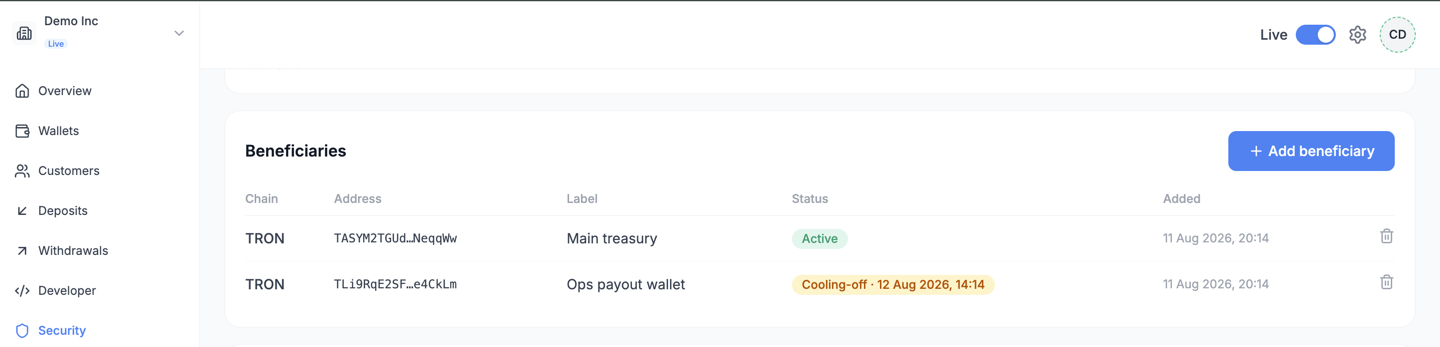
Adding a beneficiary asks for your authenticator code, and the new address only becomes usable
after the cooling-off delay; until then it is listed with its activation time. Removing one is
instant (removal is a hardening). Your servers are notified either way (BENEFICIARY_ADDED,
BENEFICIARY_REMOVED).
Withdrawal policy
Section titled “Withdrawal policy”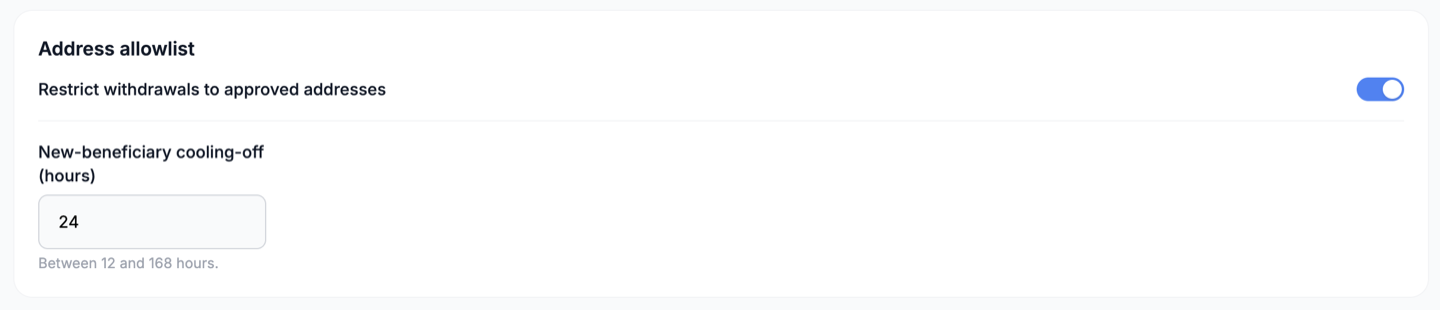
- Allowlist: enabling is immediate; disabling is delayed, the allowlist stays enforced for the cooling-off period after you turn it off.
- Cooling-off delay: from 12 to 168 hours (default 24). It governs both new beneficiaries and the delayed disable above.
- Approval (four-eyes): set a threshold and withdrawals above it wait for a second member’s approval, with an expiry window. Enabling it is frictionless; weakening it (raising the threshold, disabling it) asks for your authenticator code.
Any change that weakens the policy notifies your servers (WITHDRAWAL_POLICY_CHANGED with
data.weakened: true) and the workspace owners by email.
Withdrawal limits
Section titled “Withdrawal limits”Per-asset limits (per transaction and per rolling day). You can lower them freely; you cannot raise them above the platform default yourself: above that, contact support, which is a deliberate part of the control.
Your two-factor authentication
Section titled “Your two-factor authentication”Enrol your authenticator app here: scan the QR code, confirm a code, and store the backup codes (shown once) in your password manager.
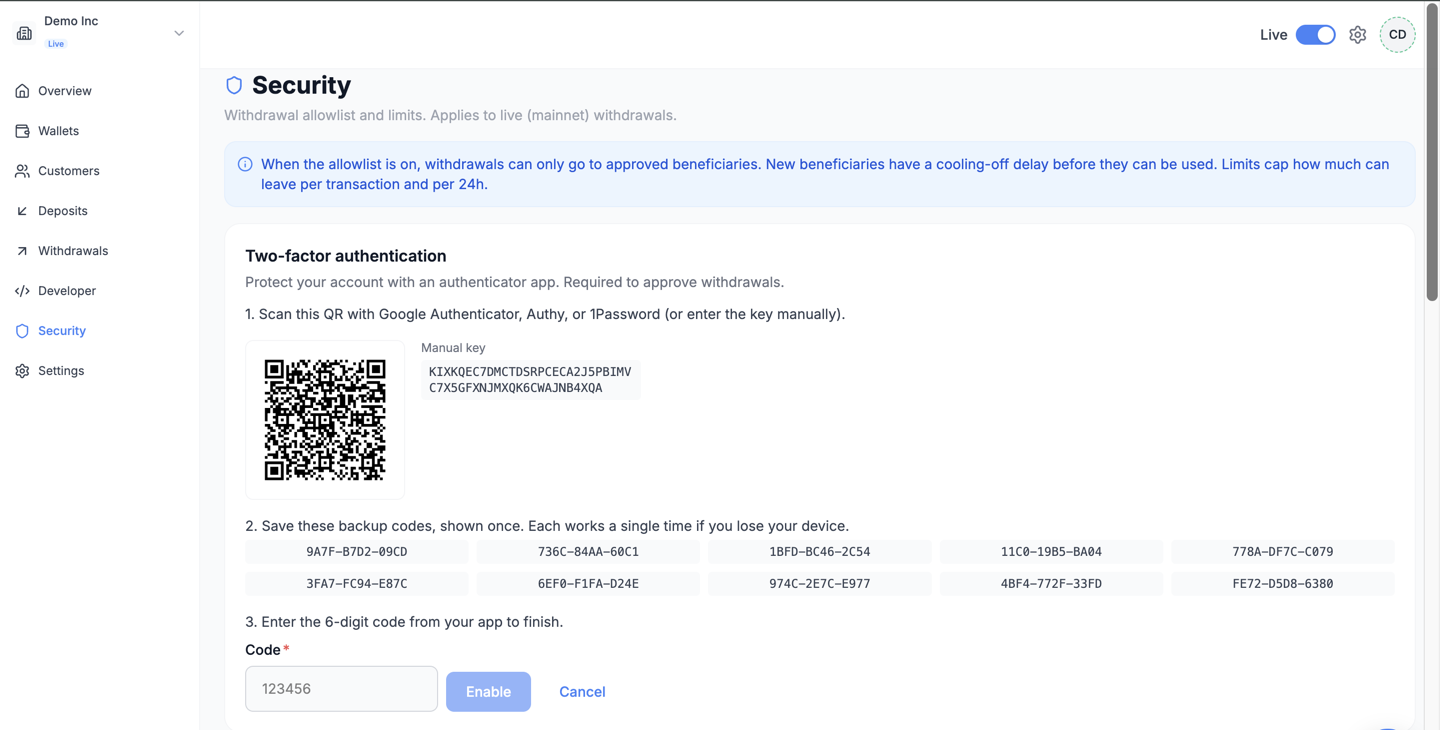
Once enrolled, TOTP replaces the email code at sign-in, and it is what the step-up prompts on this page and on withdrawals ask for. Losing the phone is what the backup codes are for: sign in with one, disable TOTP, re-enrol on the new device.
What next
Section titled “What next”- Send withdrawals: how these controls appear on the API side.
- Going live: why visiting this page belongs on go-live day.